
How to Add a Step Counter Widget to Your iPhone Lock Screen
To show your steps on an iPhone, install Wobble, open it once, allow read access to Steps when Health asks, then add Wobble from the widget gallery on the Home Screen or Lock Screen. Wobble requires iOS 17 or later. The app reads Steps from Health and shows the total in the widget.
Set up Wobble in the order it actually needs
- Install Wobble from the App Store and open the app.
- Follow the first-run prompt and allow Wobble to read Steps in Health. Wobble requests read access only; it does not write step samples.
- Add a widget. For the Home Screen, touch and hold an empty area until the apps jiggle, tap Edit, tap Add Widget, search for Wobble, choose a size, then tap Add Widget and Done. For the Lock Screen, touch and hold the Lock Screen, tap Customize, choose Lock Screen, tap the widget area, choose Wobble, and tap Done.
- Return to the Lock Screen or Home Screen and compare the displayed total with today’s Steps total in Apple’s Health app. The first value can take a little time to appear; iOS decides when a widget refresh is delivered.
The Lock Screen family is the glanceable, tinted version. Wobble’s Home Screen widgets show a larger full-colour view. These images show the resulting appearance, not the Settings screens used to add a widget:
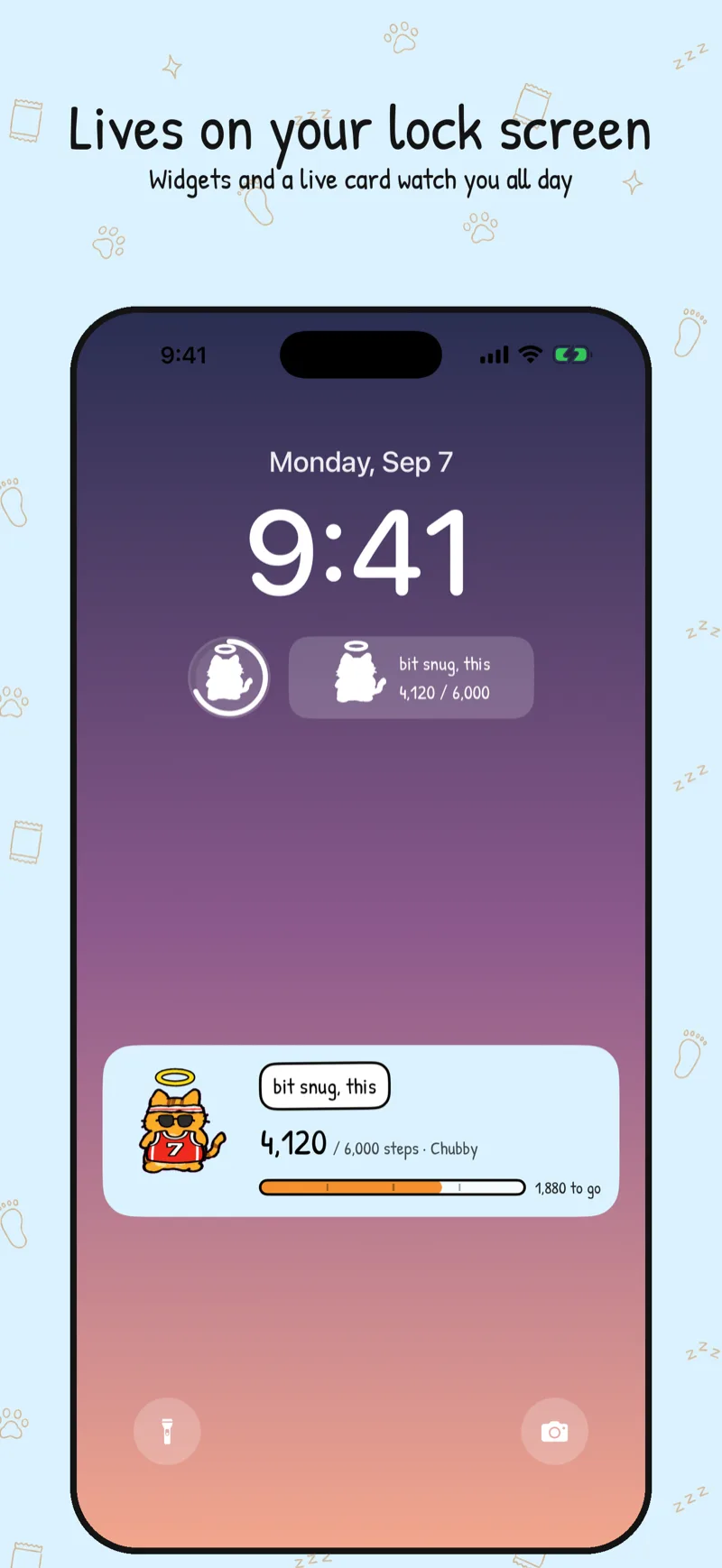
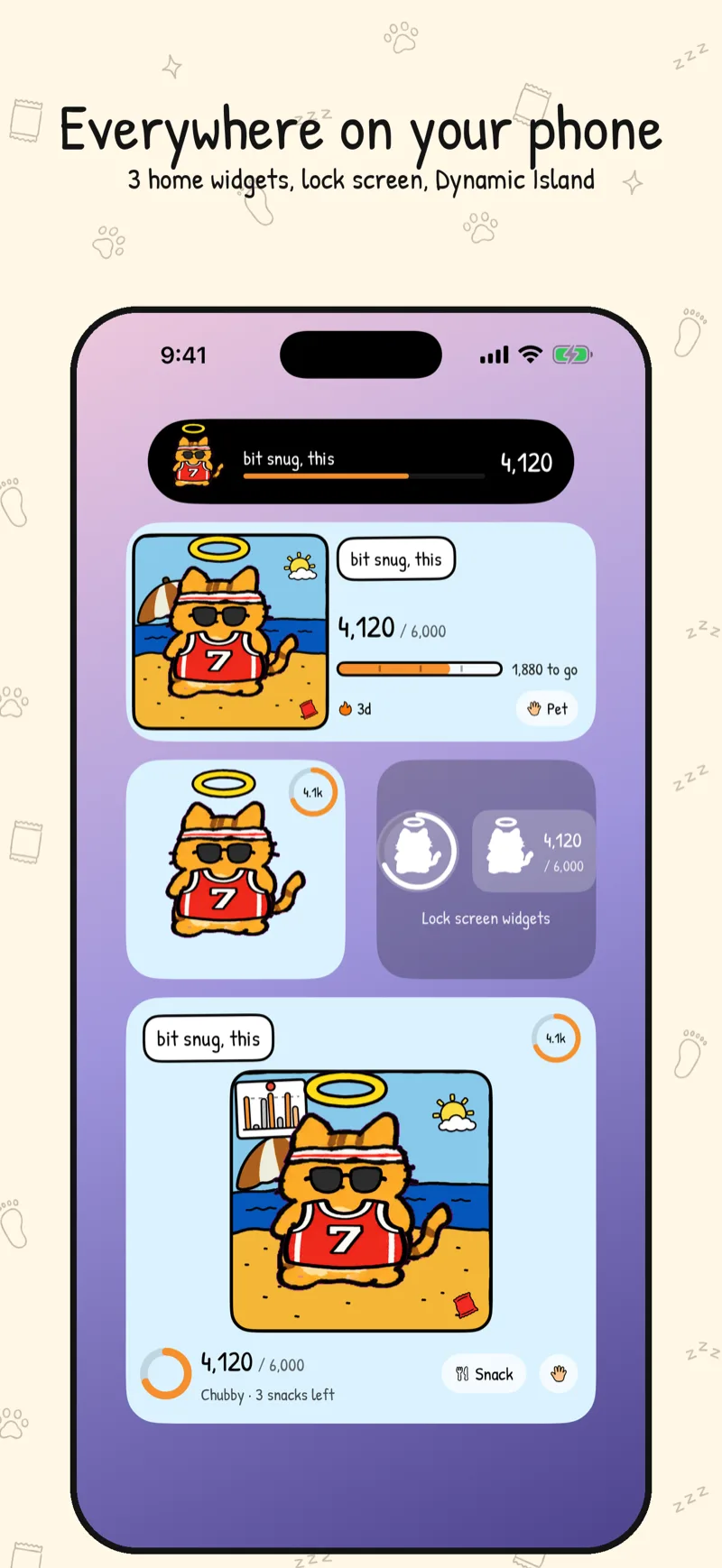
What the permission flow means
If the number is missing, open Wobble and check Settings → Health → Data Access & Devices → Wobble → Steps. The exact labels can vary by iOS language.
Lock Screen, Home Screen, and update timing
Apple supports Lock Screen widgets from iOS 16, but Wobble requires iOS 17+. Lock Screen widgets are compact and tinted; Home Screen widgets have room for a full-colour pet view. iOS manages refresh timing, so no app can promise an instant update after every step.
Wobble’s body rule is also averaged: after the first three grace days, the recent three-day average determines a target stage. A ratio of 1.2 or more targets Slim, 0.7 to under 1.2 targets Normal, 0.4 to under 0.7 targets Chubby, and below 0.4 targets Blob. The confirmed body moves at most one stage per day, so one strong day does not instantly slim a pet.
If Health itself is missing steps, check the iPhone’s motion and fitness settings and the Health data source list before troubleshooting the widget. Wobble does not add a separate pedometer sensor.
Sources
- Apple Support: Add, edit, and remove widgets on iPhone
- Apple Support: Share health and fitness data in Health on iPhone
- Apple Developer: Keeping a widget up to date
- Apple Developer: TimelineProvider
Frequently asked questions
Where do I check Wobble's step permission?
Open Settings → Health → Data Access & Devices → Wobble and make sure Steps read access is on. Wobble reads the steps from Health and shows them in the widget.
What iOS version does Wobble need?
Wobble requires iOS 17 or later. iOS 16 introduced Lock Screen widgets in general, but that does not lower Wobble's own iOS requirement.
Will the widget update immediately after I walk?
Not necessarily. iOS manages widget refresh timing, so the number may update later than the Health app.
Why is the Lock Screen widget monochrome?
Lock Screen widgets use Apple's tinted, single-colour presentation. Wobble's Home Screen widgets and Live Activity can show colour.
Skip your steps, it gets fat.
Wobble is a step-count pet for your iPhone Lock Screen and Home Screen widgets. iOS 17 or later. No account, no ads.
Get it on the App Store